satkan
2012-08-14 12:23:10
First of all, sorry if this is in the wrong subsection.
Figured people would watch here rather then anywhere else.
I was bored, and as i cannot yet script i was wondering how i could help this community where i want to be a part of.
So i wrote a small guide that leads you through the (suprisingly) easy process of accesing simba / smart from anywhere.
Goal of this is to check if you are stuck in a random / setting up another script while you are at work / school / camp / bed / toilet / anywhere.
So, that said, let's commence.
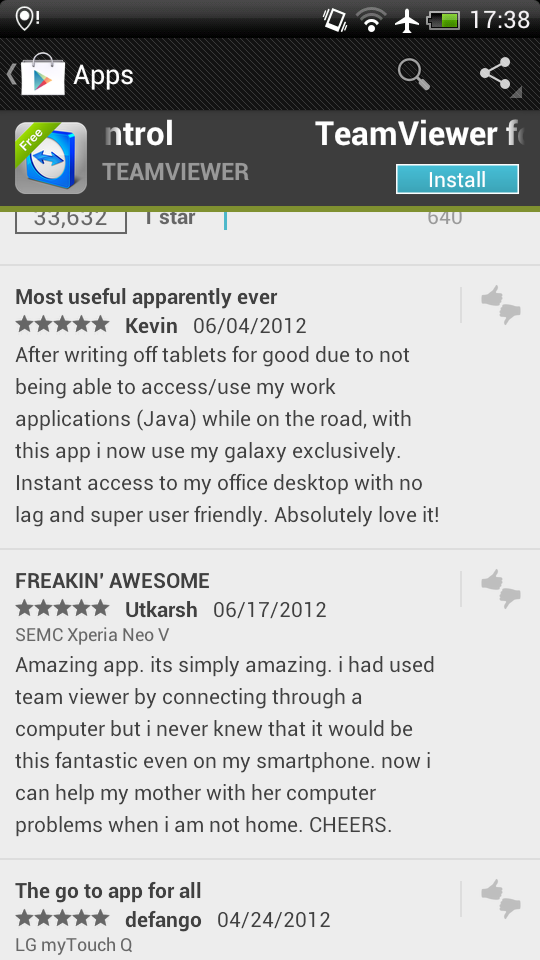
First of all download teamviewer from the play store / app store.
Let it install and just leave your phone for now.
Go to your computer,
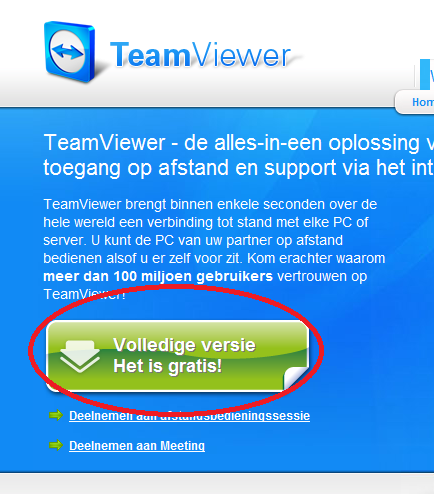
Download teamviewer at www.teamviewer.com
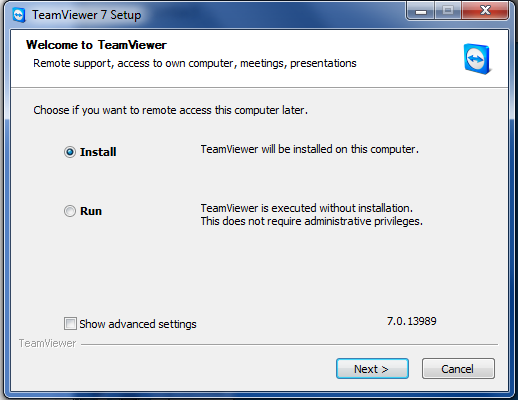
Follow the instalation process.
Mind to click personal / non-commercial use.
You will be asked if you want to use your computer later as a remote control reciever. CLICK YES
Follow the unattended acces form.
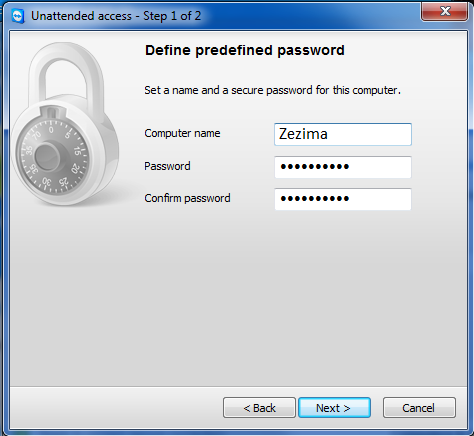
Create a teamviewer account
Make sure that the next screen that pops up remains visible, and leave your computer for now.
Pick up your phone, and start the teamviewer app.
Do "next -> next -> done" in the right above corner.
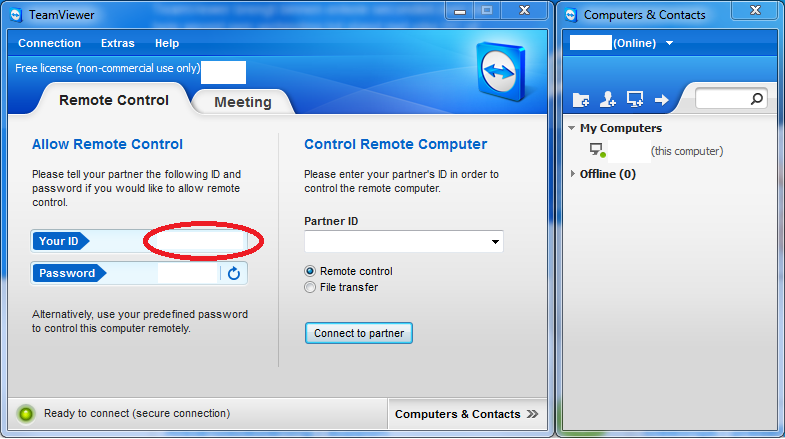
Fill in your ID This is shown in the red circle on the screenie above.
Fill in the password (also in the desktop window)
Read these instructions.

Enjoy using Simba / Smart and anything else on your phone!
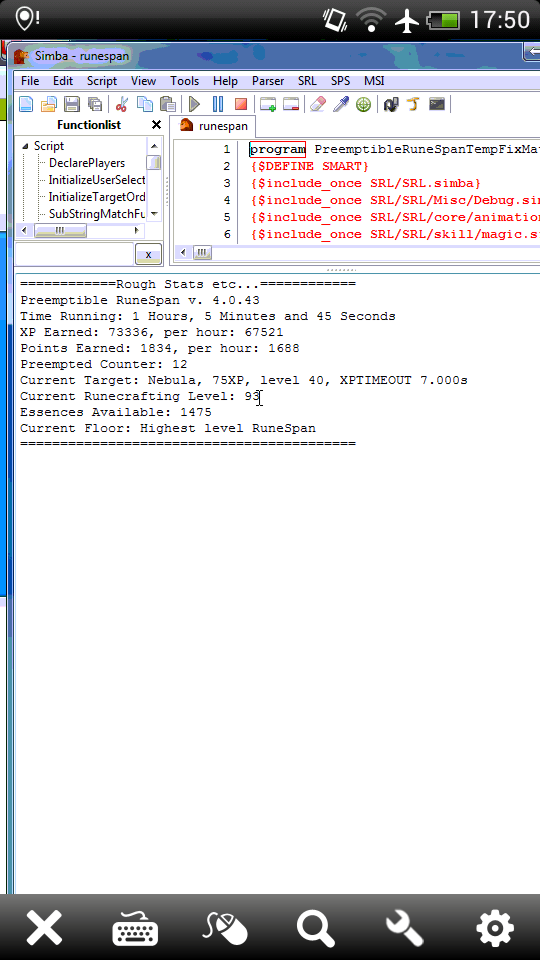
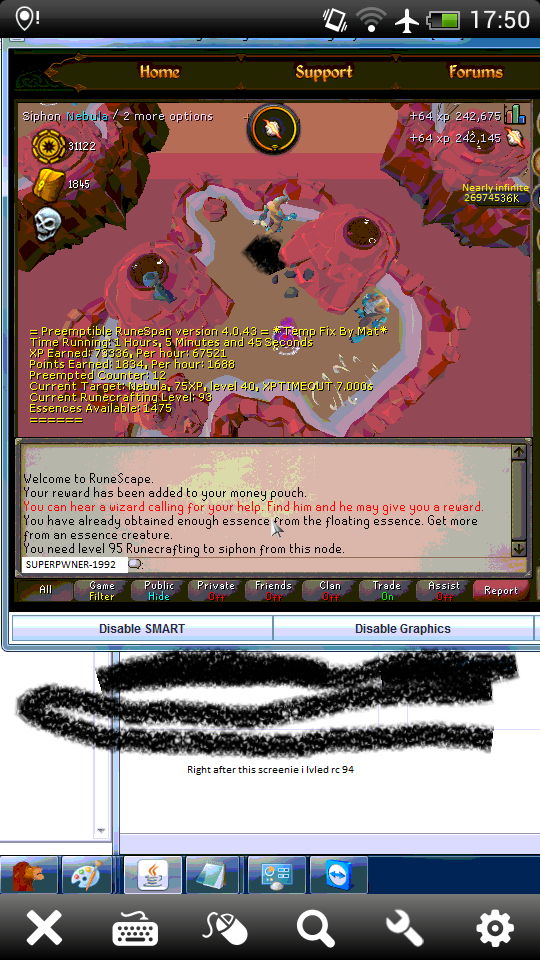
Hopefully this helped, questions below.
Any feedback is also appreciated.
Figured people would watch here rather then anywhere else.
I was bored, and as i cannot yet script i was wondering how i could help this community where i want to be a part of.
So i wrote a small guide that leads you through the (suprisingly) easy process of accesing simba / smart from anywhere.
Goal of this is to check if you are stuck in a random / setting up another script while you are at work / school / camp / bed / toilet / anywhere.
So, that said, let's commence.
First of all download teamviewer from the play store / app store.
Let it install and just leave your phone for now.
Go to your computer,
Download teamviewer at www.teamviewer.com
Follow the instalation process.
Mind to click personal / non-commercial use.
You will be asked if you want to use your computer later as a remote control reciever. CLICK YES
Follow the unattended acces form.
Create a teamviewer account
Make sure that the next screen that pops up remains visible, and leave your computer for now.
Pick up your phone, and start the teamviewer app.
Do "next -> next -> done" in the right above corner.
Fill in your ID This is shown in the red circle on the screenie above.
Fill in the password (also in the desktop window)
Read these instructions.
Enjoy using Simba / Smart and anything else on your phone!
Hopefully this helped, questions below.
Any feedback is also appreciated.