Kyle Undefined
2010-01-09 03:00:33
Ok, well I found this pretty tough since I couldn't find any real good tutorials that worked. They all left you stuck or didn't fully explain how to do it.
[Windows 7]
1. Open VirtualBox, and with the Windows 7 virtual machine selected in the left side, click the 'General' button on the "Details" tab.
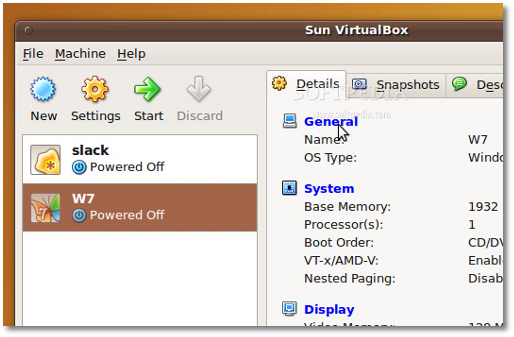
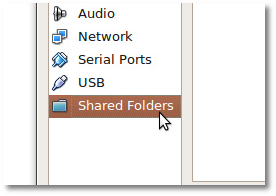
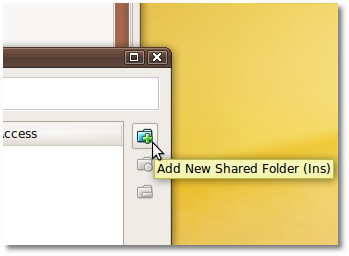
2. In the settings window that appears, click the "Shared Folders" entry (last one) and then click on the little folder icon with a + on it (on the right) to add a new shared folder…
3. A new dialog appears, called Add Share. Click the arrow on the "Folder Path" field and select 'Other.' Search for the folder you want to share with the Windows 7 virtual machine and click OK…
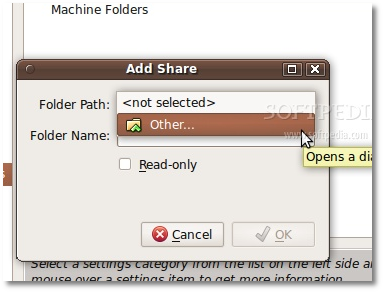
4. You will now see the full path to the folder you want to share and you can give it a name or just leave it as it is. Click OK to close the "Add Share" dialog…
5. You will now see the folder in the "Shared Folders" section. Click OK to close the settings dialog…
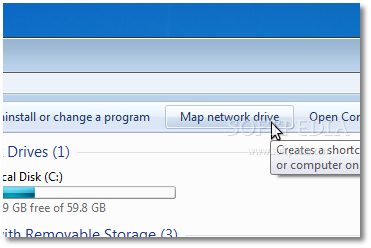
6. Now, start the Windows 7 virtual machine. When the system is fully loaded, open My Computer and click on the "Map network drive" button…
7. In the new window that appears, select a driver letter on the "Drive" field (any letter you want from the list), and type "\\vboxsrv\sharedfolderhere" with no quotes in the Folder field.
Also, don't forget to check the "Connect using different credentials" option either.
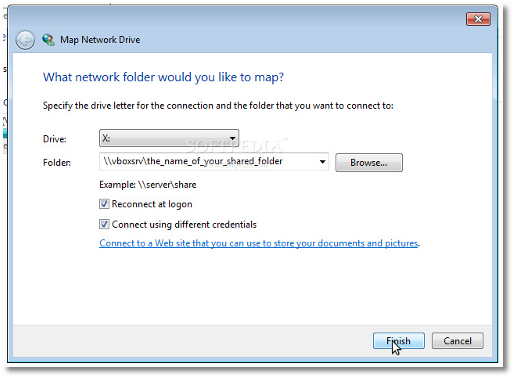
After this, click the "Finish" button and you will be prompted to insert the username and password of your Linux machine. Check the "Remember my credentials" option and click the OK button…
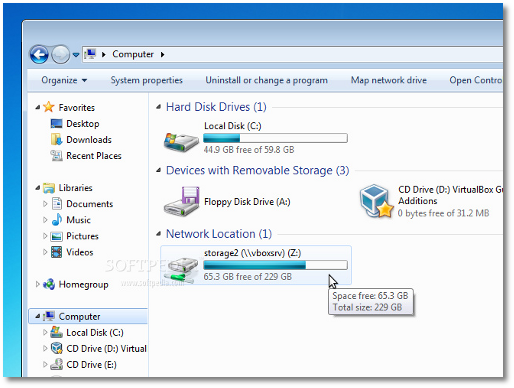
You can see your shared folder in the My Computer window, under the Network Location section… and it also shows how much space is left on the drive…
[Windows XP]
I'll finish this when I install my XP box :)
And that's that. Hope you enjoyed it! As always, thanks for reading! :D
~Camo
[Windows 7]
1. Open VirtualBox, and with the Windows 7 virtual machine selected in the left side, click the 'General' button on the "Details" tab.
2. In the settings window that appears, click the "Shared Folders" entry (last one) and then click on the little folder icon with a + on it (on the right) to add a new shared folder…
3. A new dialog appears, called Add Share. Click the arrow on the "Folder Path" field and select 'Other.' Search for the folder you want to share with the Windows 7 virtual machine and click OK…
4. You will now see the full path to the folder you want to share and you can give it a name or just leave it as it is. Click OK to close the "Add Share" dialog…
5. You will now see the folder in the "Shared Folders" section. Click OK to close the settings dialog…
6. Now, start the Windows 7 virtual machine. When the system is fully loaded, open My Computer and click on the "Map network drive" button…
7. In the new window that appears, select a driver letter on the "Drive" field (any letter you want from the list), and type "\\vboxsrv\sharedfolderhere" with no quotes in the Folder field.
Also, don't forget to check the "Connect using different credentials" option either.
After this, click the "Finish" button and you will be prompted to insert the username and password of your Linux machine. Check the "Remember my credentials" option and click the OK button…
You can see your shared folder in the My Computer window, under the Network Location section… and it also shows how much space is left on the drive…
[Windows XP]
I'll finish this when I install my XP box :)
And that's that. Hope you enjoyed it! As always, thanks for reading! :D
~Camo