Dervish
2009-12-24 08:59:37
Table of Contents
Chapter I - SCAR
1: Getting SCAR
2: Setting SCAR the way we want it
3: Getting SCAR includes
Chapter II - Starting to script
1: The Basics
2: The Scanning
3: The Acting
SCAR
1) Getting SCAR.
To get SCAR, visit this link :
http://freddy1990.com/index.php?page=products
And download latest SCAR version (free).
Go through the install manager and open SCAR from the icon it should have made on your desktop or in your Start menu :
Close the window presenting SCAR's functions and developements and accept to install latest includes.
Close it and open it again, you should have this :

You now have the main tool to script for RuneScape !
2) Setting SCAR the way we want it.
The first thing you will want to do is fix the firewall settings, else you will not be able to run any script using SRL and SMART :
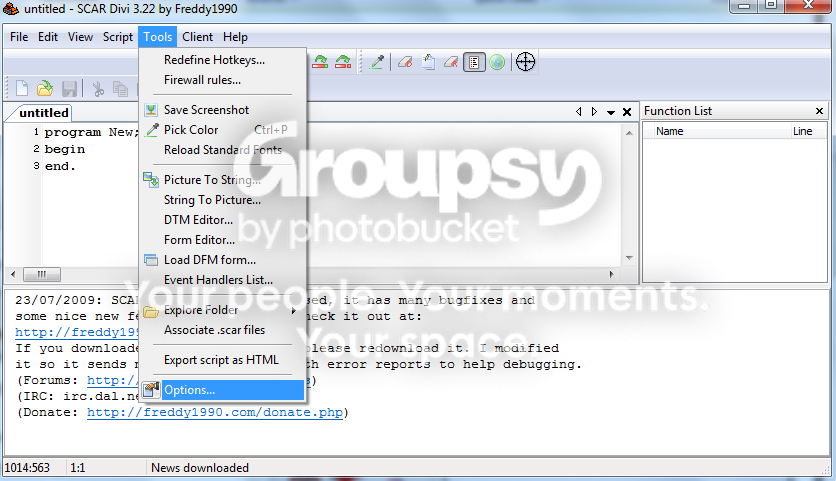
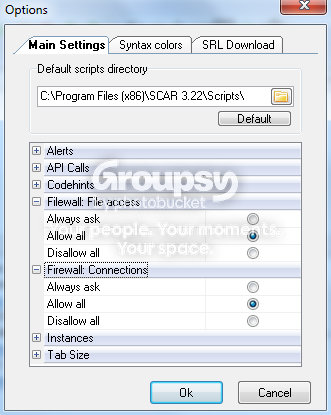
The next thing you will want to do is set the hotkeys as for some reason, they never work in default !
To do that, go here :


Then choose hotkeys, I choose F2 run script F3 stop script, as they are really simple of access.
The next thing is optional, I do it to make it faster to get to scripting once SCAR is opened :
Copy and paste this code :
And paste it over the code in your SCAR window, you should get this :

Go here :

Now close SCAR and re-open it again, you should get what we just pasted in SCAR instead of :
But what does that code mean ? I'll come to it soon.
3)Getting SCAR includes
Install Tortoise SVN from here : http://tortoisesvn.net/downloads
Restart the computer following the installation.
Now go into
Chapter I - SCAR
1: Getting SCAR
2: Setting SCAR the way we want it
3: Getting SCAR includes
Chapter II - Starting to script
1: The Basics
2: The Scanning
3: The Acting
SCAR
1) Getting SCAR.
To get SCAR, visit this link :
http://freddy1990.com/index.php?page=products
And download latest SCAR version (free).
Go through the install manager and open SCAR from the icon it should have made on your desktop or in your Start menu :
Close the window presenting SCAR's functions and developements and accept to install latest includes.
Close it and open it again, you should have this :
You now have the main tool to script for RuneScape !
2) Setting SCAR the way we want it.
The first thing you will want to do is fix the firewall settings, else you will not be able to run any script using SRL and SMART :
The next thing you will want to do is set the hotkeys as for some reason, they never work in default !
To do that, go here :
Then choose hotkeys, I choose F2 run script F3 stop script, as they are really simple of access.
The next thing is optional, I do it to make it faster to get to scripting once SCAR is opened :
Copy and paste this code :
program New;
{.include SRL/SRL.scar}

Procedure SetUp;
begin
  SetupSRL;
end;

begin
  SetUp;
end.
And paste it over the code in your SCAR window, you should get this :
Go here :
Now close SCAR and re-open it again, you should get what we just pasted in SCAR instead of :
But what does that code mean ? I'll come to it soon.
3)Getting SCAR includes
Install Tortoise SVN from here : http://tortoisesvn.net/downloads
Restart the computer following the installation.
Now go into
, you should have a folder named SRL. If not, create it.

Right click that folder and choose the SVN checkout option from the droplist.

Enter this link here :

[IMG]http://i420.photobucket.com/albums/pp281/Purevil_X/SCARTTSVNCO.png[/IMG]

(don't mind my empty checkout folder, leave it as it is on your computer)

Press Enter to validate. Wait for it to have finished installing the SRL Include into your SRL folder to continue.

Inside the SRL folder, you should have this folder :

[IMG]http://i420.photobucket.com/albums/pp281/Purevil_X/SCARPIF.png[/IMG]

Open it and CTRL+X or CTRL+C the files inside it.

Go into this folder now [SCAR#.## > Plugins] and CTRL+C the files you just copied / cut out.

You should now have this :

[IMG]http://i420.photobucket.com/albums/pp281/Purevil_X/SCARPIF2.png[/IMG]

You are now set to script bots for RS with ease thanks to the functions inside SRL :).


[B][U][SIZE="3"]Chapter II - Starting to Script[/SIZE][/U][/B]

[U]1) The Basics [/U]

In SCAR, unless you use Reflection, almost everything is about getting the colors of an object to then action it in a certain way.

This color we're looking for is at a certain location on the screen, the coordinates of this point is in two parts which we will call x and y for the moment.

These two parts are numbers, thus we must declare them as such :

[IMG]http://i420.photobucket.com/albums/pp281/Purevil_X/SCARBasics1.png[/IMG]

Let's try this out shall we ?

Let's say I'm looking for a color : red (1117183) on my screen, I will write a quick procedure in the script, in order to make it look for this red dot on my screen, and write out its coordinates in the debug box :

[IMG]http://i420.photobucket.com/albums/pp281/Purevil_X/SCARTReddot.png[/IMG]

[CODE]program New;
{.include SRL/SRL.scar}

var
  x,y : Integer;

procedure SetUp;
begin
  SetupSRL;
end;

procedure FindAndOutputRedDotCoordinates;
begin
  FindColor(x,y,1117183,0,0,1599,856);
  Writeln(IntToStr(x)+','+IntToStr(y));
End;

begin
  SetUp;
  FindAndOutputRedDotCoordinates;
end.[/CODE]

The result is :

[IMG]http://i420.photobucket.com/albums/pp281/Purevil_X/SCARTReddot2.png[/IMG]

The code succeeded in finding the Red Dot coordinate on my screen !

Now that we know the script found the Red dot, we can make the script action in a way wether it finds the Dot or not, but thats a bit more sofisticated ;).

I will now explain the code to you :

[CODE]Program New;[/CODE]

This is the name of the script, might as well call it RedDotFinder or Banana, it will do the same.

[CODE]{.include SRL/SRL.scar}[/CODE]

This part is not useful for this script but its the major tool for runescape cheating ;).

It contains loads of safer and approved functions written by the best scripters to make your RS Scripting life easier.

For example :

MoveMouse(#,#); : this will move the mouse instantly to the point we've specified in the settings of the function.

Jagex easily scans the way the mouse moved to check if its a human that is playing and not some kind of bot.

That's why :

MMouse(#,#,#,#); exists.

I will not explain the # now, its a bit too advanced as I'm only trying to explain the basics.

MMouse will move the mouse slowly or faster to its goal, making it human like :).

[CODE]var
  x,y : Integer;[/CODE]

I've explained this already, it declares that x and y are numbers (integers) for later use in functions and procedures.

[CODE]procedure SetUp;
begin
  SetupSRL;
end;[/CODE]

This is a very basic SetUp procedure, it compiles the SRL include, its absolutely necessary in any script using the include.

[CODE]procedure FindAndOutputRedDotCoordinates;
begin
  FindColor(x,y,1117183,0,0,1599,856);
  Writeln(IntToStr(x)+','+IntToStr(y));
end;[/CODE]

procedure [name]; defines the name of the procedure aswell as its possible settings, but that's for more advanced scripters ;).

begin
..             This is very important, a procedure must have a "begin" in its    ..             beginning and an "end;" in its end.
end;

FindColor(...); This function tries to find the color specified in the third place to put its coordinates in the two first specified places (x,y) in this case.

Writeln(...); This writes what's between the () in the debug box, down under the script.

That means :

Writeln() cannot write out [B]integers[/B], only [B]strings[/B], yet the strings can hold number characters.

[CODE]begin
  SetUp;
  FindAndOutputRedDotCoordinates;
end.[/CODE]

This is the so called "mainloop" as it contains all the procedures and functions which should be triggered and in which order.

Here you see, it starts by doing the SetUp, and then doing the FindAndOutputRedDotCoordinates;.

begin
..
..
end.

Interesting, if you have not noticed, the 'end' does not have a ";" but a "." instead, this is for the mainloop only.


I hope you enjoyed this guide so far, as it is not finished yet. Should you notice any errors or false facts, please post and tell me ;).

I reccommend you to check these tutorials out as they are really nice and helpful :

Standards (structure of the scripts) : [url]http://www.villavu.com/forum/showthread.php?t=3293[/url]

Quickly fixing short errors : [url]http://www.villavu.com/forum/showthread.php?t=6413[/url]

Antiban : [url]http://www.villavu.com/forum/showthread.php?t=51568[/url]